

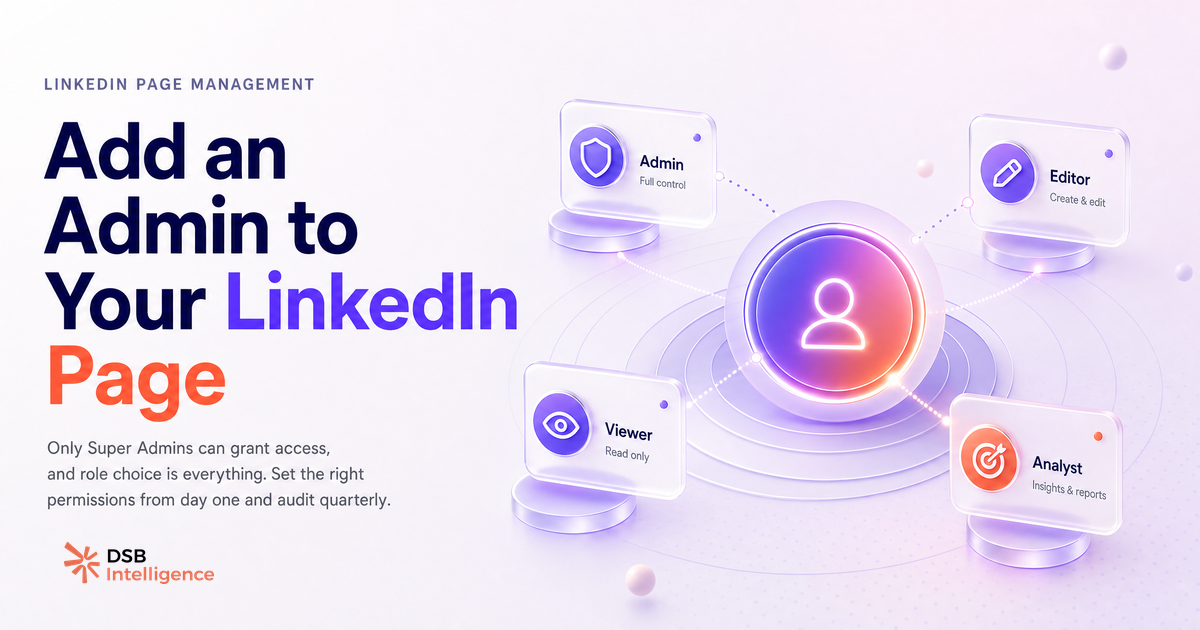
The 3 clicks to add a LinkedIn Page admin take under a minute. The role you assign that person can create problems that last months.
Most teams get the mechanics right and the governance wrong. Here is how to do both.
The 3-step process to add an admin to your LinkedIn Page (and where people get stuck)
Adding an admin is straightforward once you know where the setting lives.
Step 1. Go to your LinkedIn Page in Admin view. In the left sidebar, click "Settings."
Step 2. Select "Page admins." In the search field, type the name of the person you want to add. They must already be a 1st-degree connection — if they are not, you cannot add them until you connect first. This is the most common point of friction.
Step 3. Choose their role from the dropdown, then click "Save." Access is live immediately. The person receives a notification but does not need to accept anything.
One practical note: if you manage multiple Pages under a single LinkedIn account, make sure you are in the Admin view of the correct Page before opening Settings. It is easy to add someone to the wrong Page when you are switching between several.
LinkedIn Page roles explained: Super Admin, Content Admin, Analyst, and Sponsored Content Poster
LinkedIn offers four distinct roles for Page admins. Each maps to a specific job, and conflating them is where access sprawl begins.
Super Admin is the highest level. A Super Admin can edit all Page settings, manage billing, and — critically — add or remove other admins. Treat this role like a production database password: assign it to one or two named owners, not to everyone on the marketing team.
Content Admin can create, schedule, and publish organic posts. They can edit the Page description and update the cover image. They cannot touch Page settings, billing, or other admins. This is the right default for most marketing contributors and agency content teams.
Analyst is read-only. An Analyst can view Page analytics, follower demographics, and post performance data. They cannot publish, edit, or manage anything. This is the safest role for external consultants or agencies who only need reporting access — and the role most teams forget exists, defaulting instead to Content Admin when Analyst would suffice.
Sponsored Content Poster is scoped to paid. This role can create and manage ad campaigns linked to the Page, including boosting organic posts. They cannot edit the Page or publish organic content. Useful for a paid media specialist who runs ads on a Page they do not own editorially.
A quick reference:
| Role | Publish organic | Edit Page settings | Manage admins | Run ads | |---|---|---|---|---| | Super Admin | Yes | Yes | Yes | Yes | | Content Admin | Yes | No | No | No | | Analyst | No | No | No | No | | Sponsored Content Poster | No | No | No | Yes |
How to assign roles without creating access sprawl on a growing team
Access sprawl is the slow accumulation of permissions that nobody audits. On LinkedIn Pages, it has a specific shape: a freelancer who did three months of content in 2022 still has Content Admin access today. An ex-employee who left last quarter is still listed as Super Admin.
LinkedIn does not expire admin access automatically when someone changes their job title or employer. The responsibility sits entirely with the current Super Admin.
Three habits that prevent sprawl:
-
Audit the admin list quarterly. Open Settings > Page admins and cross-reference with your current team roster. Remove anyone who is no longer active. It takes five minutes.
-
Default to the least-permissive role. If someone only needs to see analytics, give them Analyst, not Content Admin. If someone only needs to boost posts, give them Sponsored Content Poster, not Super Admin.
-
Document who owns what outside LinkedIn. A shared Notion page or a column in your team's CRM is enough. When someone leaves, the offboarding checklist should include "remove LinkedIn Page admin access" as an explicit step.
For teams managing HubSpot + LinkedIn Integration: What Actually Syncs or a LinkedIn CRM Integration, admin access governance becomes even more critical: a Content Admin who also has CRM write access can create data hygiene problems that are hard to trace.
How DSB Intelligence's Strategy Chat helps teams align on who owns what before permissions get messy
The access question is often a symptom of a deeper misalignment: nobody has explicitly decided who owns the LinkedIn Page editorially.
Is it the demand gen manager? The content lead? The agency? When that is unclear, everyone gets Super Admin "just in case," and nobody audits the list because nobody feels responsible.
Strategy Chat, DSB Intelligence's conversational layer, is built for exactly this kind of alignment question. You can ask it "who should own our LinkedIn Page publishing cadence this quarter given our team structure" and it will cross-reference your current content performance, posting frequency, and team activity to surface a concrete recommendation — before the permissions conversation even starts.
That matters for Page governance because the role assignment should follow the editorial ownership decision, not precede it. Assigning roles first and figuring out ownership later is how you end up with three Super Admins and no clear editorial voice.
For teams building out their LinkedIn content operation, the role structure also intersects with format strategy. If you are running carrousels LinkedIn or Thought Leader Ads, the person managing those formats needs the right permissions from day one — not a retroactive role upgrade after a deadline is missed.
Can you add someone as an admin without them accepting? (and other common questions answered)
Yes, there is no acceptance step. Once a Super Admin saves the role assignment, access is live. The new admin receives a LinkedIn notification, but they do not need to click "accept." This is different from how LinkedIn handles connection requests or group invitations.
What if the person is not a 1st-degree connection? You cannot add them. LinkedIn enforces this at the search level — their name simply will not appear in the admin search field. Send a connection request first, wait for them to accept, then add them as an admin.
Can an admin remove themselves? Yes, but only if they are not the sole Super Admin. If you are the only Super Admin on a Page and you remove yourself, the Page loses all admin access. LinkedIn will prompt you to assign another Super Admin before allowing the removal.
Can you have multiple Super Admins? Yes, and for business continuity, you should have at least two. If the sole Super Admin leaves the company without transferring access, recovering the Page requires contacting LinkedIn support — a process that can take days.
Does the role apply to all Pages linked to a company? No. Admin roles are Page-specific. If your company has a main Page and a Showcase Page, you need to assign roles separately on each.
For teams running paid alongside organic, the Download LinkedIn Video workflow and ad asset management also sit in separate permission layers — worth mapping before you scale.
Et maintenant ?
- Open your LinkedIn Page's Settings > Page admins today and audit the current list against your active team roster.
- Downgrade any Content Admin who only needs reporting access to Analyst.
- Confirm you have at least two Super Admins named — and that both are current employees.
- Document the role ownership in your team's shared workspace so offboarding includes a LinkedIn access step.
Si tu veux aligner ton équipe sur qui fait quoi avant que les permissions ne deviennent un problème, essaie DSB Intelligence gratuitement et pose la question directement à Strategy Chat.