

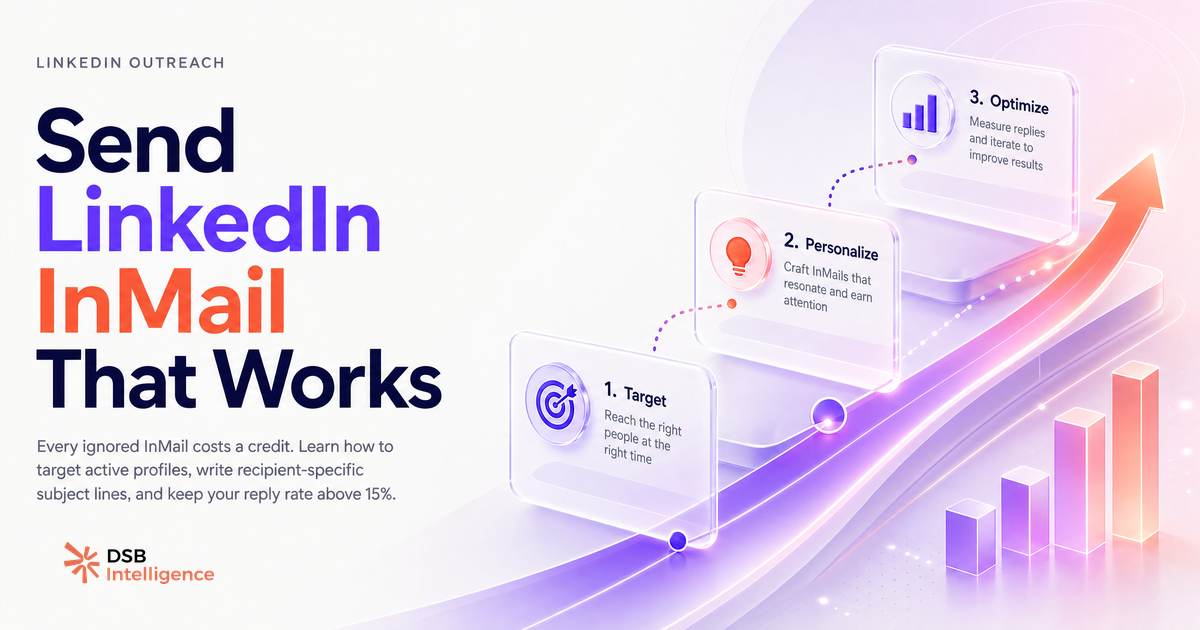
Most people treat InMail as a slightly fancier cold email. It isn't. The credit mechanic changes the economics entirely, and LinkedIn's account-level tracking changes the stakes.
What is InMail actually, and what does LinkedIn's help page skip?
InMail is LinkedIn's paid outreach channel: it lets you message any LinkedIn member regardless of connection status, as long as you hold a qualifying subscription. That's the part LinkedIn explains clearly.
What the help page glosses over is the feedback loop. LinkedIn tracks your InMail reply rate at the account level. A sustained low rate doesn't just mean wasted credits; it signals to the platform that your targeting is off. The practical consequence is that your InMail deliverability and account standing can degrade over time if you treat the channel as a spray-and-pray tool.
The credit refund mechanic reinforces this. You get a credit back only if the recipient replies within 90 days. No reply, no refund. Every ignored InMail is a direct cost, not an impression. That's a fundamentally different calculus from email, where the marginal cost of one more send is near zero.
For a clear breakdown of when to use InMail versus a standard connection request or direct message, see LinkedIn Message vs InMail: Which One to Send.
How do you send an InMail: the four steps, with the decisions that matter?
Sending an InMail is mechanically simple. The decisions inside each step are where most people lose credits.
Step 1: Find the right profile. Go to the LinkedIn profile of someone you're not connected to. The "Message" button will appear if you have a Premium, Sales Navigator, or Recruiter subscription. If you're on a free account, you'll see "Connect" only.
Step 2: Write a subject line that earns the open. This is the highest-leverage decision in the entire flow. The subject line is the only thing visible in the notification and the inbox preview. It needs to be specific to the recipient, not to your product. "Quick question about your Q3 hiring plan" outperforms "Intro: [Your Company]" every time.
Step 3: Write a short, relevant body. One credit, one shot. Keep the body under 150 words. State why you're reaching out in the first sentence. Make the ask clear and low-friction (a yes/no question, not a 30-minute call request). Personalization based on their recent posts or role change outperforms any template.
Step 4: Send and track. One credit is deducted immediately. Set a reminder to check for replies before the 90-day refund window closes. If you're running multiple InMail campaigns in Sales Navigator, the reply rate dashboard is your primary signal for whether the targeting is working.
Why do most InMails get ignored before they're even opened?
The open is the first gate, and most InMails fail there. Two factors drive this.
First, the subject line. A generic subject ("Connecting," "Partnership opportunity," "Quick question") reads as noise. The recipient's inbox already contains dozens of these. A subject line that references something specific to them (a post they published, a company milestone, a role transition) creates a pattern interrupt. That's the only mechanism available to earn the open.
Second, recipient activity. Sending an InMail to a profile that hasn't been active on LinkedIn in weeks means the notification will be buried or ignored entirely. The recipient's recent engagement on the platform is a proxy for their likelihood of seeing and responding to your message. This is the variable most B2B outreach teams never check.
The combination of a generic subject line sent to an inactive profile explains the majority of sub-5% reply rates. It's a targeting problem dressed up as a copywriting problem.
How does DSB Intelligence read your InMail reply rate as a targeting signal?
Reply rate is a lagging indicator. By the time you notice it's low, you've already burned a significant portion of your monthly allocation.
The Recommendations Engine in DSB Intelligence flags this pattern early. When your InMail reply rate drops across a campaign segment, it surfaces the targeting variables that correlate with non-response: seniority mismatch, sector drift, or a spike in outreach to profiles with low recent activity. The output is a corrective action, not just a dashboard number.
The practical use case: if you're running Sales Navigator InMail campaigns alongside organic content, your reply rate and your content engagement data are telling the same story about audience fit. Reading them together is more useful than reading either in isolation.
What are the three variables worth testing before you burn your credit allocation?
Before scaling any InMail campaign, test one variable at a time. Three variables have the highest signal-to-noise ratio.
1. Subject line framing. Test a role-specific subject ("Your team's outbound stack") against a trigger-based one ("Saw your post on pipeline velocity"). Run each on a small batch of similar profiles. The winner tells you whether your audience responds to identity or to recency.
2. Persona targeting. InMail credits spent on the wrong seniority level or the wrong function are unrecoverable. Before expanding a campaign, validate that the persona you're targeting actually has the problem you're solving. A short batch of 10-15 InMails to a tightly defined segment gives you a reply rate signal before you commit the full allocation.
3. Send timing relative to activity. Profiles that have posted or engaged on LinkedIn in the past 7 days are meaningfully more likely to see and respond to an InMail. Prioritize recently active profiles in your outreach queue. This isn't a guarantee, but it shifts the base rate in your favor.
One note on automation: tools that claim to automate InMail sending at scale exist, but LinkedIn's Terms of Service prohibit this. The compliance risk is real and account-level. Before connecting any third-party tool to your outreach workflow, read LinkedIn Automation Tools in 2026: What the SERP Won't Tell You.
For context on how your broader LinkedIn presence affects outreach receptivity, How to Create a LinkedIn Company Page (And What Comes Next) covers the credibility signals recipients check before they reply. And if you're thinking about how visibility settings interact with your outreach strategy, How to Turn Off Profile Views on LinkedIn is worth a read alongside LinkedIn Hashtags in 2026: Do They Still Work? for the organic side of the equation.
Now what?
- Check your current InMail reply rate in Sales Navigator or your Premium dashboard. If it's below 15%, the problem is targeting, not copy.
- Before your next send, filter your outreach list to profiles active on LinkedIn in the last 7 days. Remove everyone else from the immediate queue.
- Write three subject line variants for your next campaign. Test them on batches of 10-15 before scaling. One variable at a time.
- Track credits spent versus replies received weekly, not monthly. The 90-day refund window is long enough to create a false sense of efficiency.
Ready to connect your InMail reply rate to the rest of your LinkedIn analytics? Start a free trial of DSB Intelligence and see what your outreach data is actually telling you.